

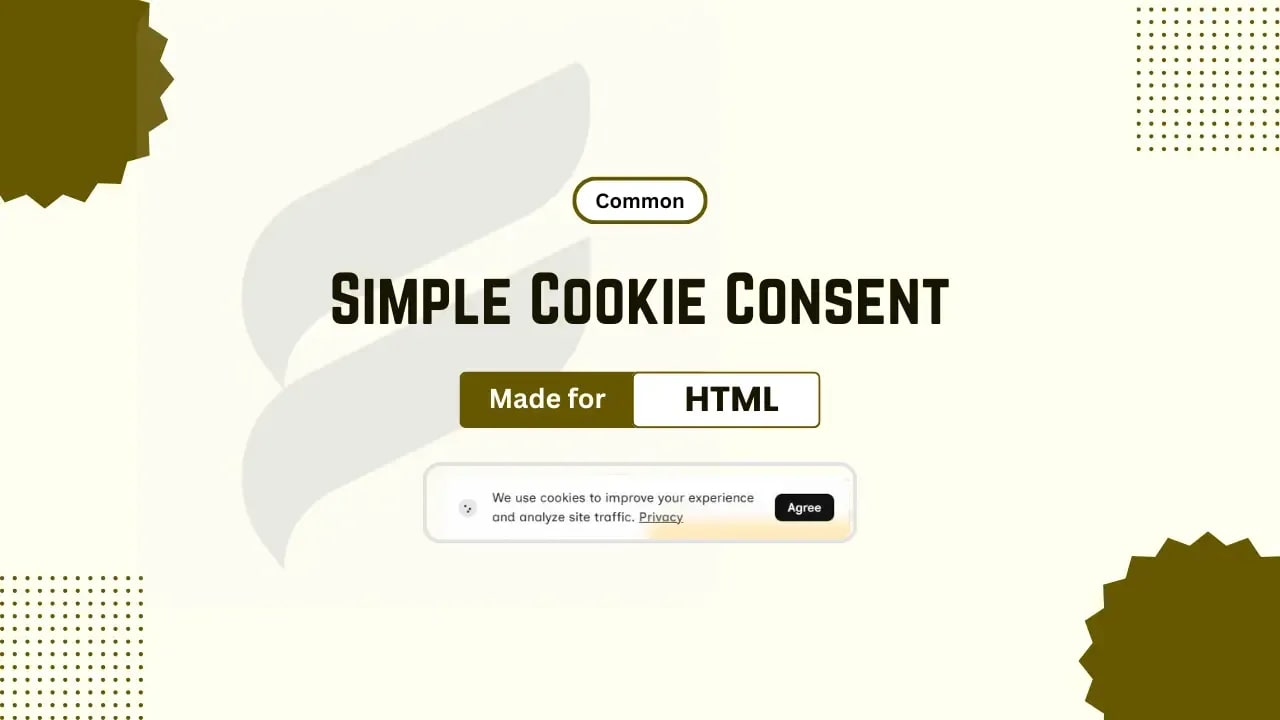
Adding cookie consent to your website is one of the important steps to gain trust from users and comply with privacy regulations. If you are running a blog, portfolio, downloading or a business website, cookie consent is must have element in your website to ensure better transparency between your website and its users. With a simple, responsive and modern design, it doesn't make your website interface messy or ugly. It improves users' trust by telling users for what purpose or why your website uses cookies.
In this tutorial, you will understand how to add a simple, responsive, modern cookie consent banner to your website just using pure CSS and JavaScript. This tutorial was also beginner-friendly, so it was easy to follow for anyone who just has basic knowledge about their website platform. This cookie consent banner does not show again and again to users; instead, it works like once a user agreed the the cookies banner message, it doesn't show in there next visit until they clear their cookies.
In this post, we will share code for both a normal HTML-based website and also for a Blogger-based website, so you can easily implement this cookies consent banner regardless of your platform. By following this tutorial carefully, at the end of this tutorial you will get a simple, modern and beautiful looking cookies consent on your website. So, without wasting much time, let's check how to implement this cookie consent banner on your website.
Understanding Cookie Consent
Features of this Cookie Consent Banner
- Only used lightweight CSS & JavaScript, no heavy code usage
- Doesn't affect your website page speed.
- Uses modern, responsive & simple design
- Dark theme support
- Smooth animation
- Once agreed doesn't show again until the user clears cookies
How to Add a Cookie Consent Banner to Your Website
First of all, you need to open your website's .html file (e.g. index.html)
Adding CSS to the website
- Find the
</head>tag in your website .html file - Paste the following CSS just above the
</head>tag - Find the
<body>tag - Paste the following HTML code just below it or anywhere inside the body tag
- Find the
</body>tag - Paste the following JS just above it
- Save your HTML file
<style>/* Simple Cookie Consent (src: www.coshix.in) */.coshix-consent{position:fixed;bottom:20px;left:20px;z-index:999999;pointer-events:none}.coshix-consent .notice-core{pointer-events:all;display:flex;align-items:center;gap:14px;padding:14px 16px;border-radius:14px;background:rgba(255,255,255,.75);color:#222;backdrop-filter:blur(8px) saturate(130%);-webkit-backdrop-filter:blur(8px);border:1px solid #e2e2e2;box-shadow:0 10px 30px rgba(0,0,0,.15);max-width:440px;transform:translateX(-120%);opacity:0}.coshix-consent .n-icon{display:flex;opacity:.9}.coshix-consent .n-text{flex:1;font-size:13.8px;line-height:1.5}.coshix-consent .n-text a{opacity:.8;text-decoration:underline!important;color:#222;font-weight:500}.coshix-consent .n-text a:hover{color:inherit}.coshix-consent .n-actions button{background:#111;color:#fff;border:none;padding:7px 14px;border-radius:8px;font-size:13px;font-weight:500;cursor:pointer;transition:transform .15s,box-shadow .2s,opacity .2s}.coshix-consent .n-actions button:hover{transform:translateY(-1px);box-shadow:0 4px 12px rgba(0,0,0,.2)}.coshix-consent .notice-core.showing{animation:.5s cubic-bezier(.2,.8,.3,1) forwards coshixSlide}@keyframes coshixSlide{to{transform:translateX(0);opacity:1}}@media (max-width:520px){.coshix-consent{left:0;right:0;bottom:0}.coshix-consent .notice-core{width:100%;max-width:100%;border-radius:0;padding:13px 14px;transform:translateY(100%);border-bottom:0!important;border-left:0!important;border-right:0!important}.coshix-consent .notice-core.showing{animation:.4s forwards coshixUp}@keyframes coshixUp{to{transform:translateY(0);opacity:1}}}
/* Dark Mode (Remove if no dark mode) */body.dark-mode .coshix-consent .notice-core{background:rgba(20,20,20,.65);color:#e8e8e8;border:1px solid #444444;box-shadow:0 10px 30px rgba(0,0,0,.4)}body.dark-mode .coshix-consent .n-text a{color:#fff}body.dark-mode .coshix-consent .n-actions button{background:#fff;color:#111}</style>dark-mode with your website's dark mode class, or else remove the CSS inside the style tag from /* Dark Mode (Remove if no dark mode) */ to reduce CSS size.
Adding HTML code to the website
<!--======= Cookie Consent (src: www.coshix.in) ======-->
<div class="coshix-consent" id="noticeLayer">
  <div class="notice-core">
    <div class="n-icon">
      <!--Cookie Icon-->
      <svg viewBox="0 0 24 24" width="20" height="20"><circle cx="12" cy="12" r="10" fill="currentColor" opacity="0.12"/><circle cx="9" cy="10" r="1.3" fill="currentColor"/><circle cx="14" cy="13" r="1.3" fill="currentColor"/><circle cx="12" cy="16" r="1.2" fill="currentColor"/></svg>
    </div>
    <!-- Main text area -->
    <div class="n-text">We use cookies to improve your experience and analyze site traffic. <a href="/privacy-policy">Privacy</a></div>
    <!-- Action button -->
    <div class="n-actions"><button id="acceptNow">Agree</button></div></div>
</div>/privacy-policy with your website's policy page link.
Adding JavaScript to the Website
<script>/* Simple Cookie Consent JS (src: www.coshix.in) */!function(){var e=document.getElementById("noticeLayer"),t=document.getElementById("acceptNow"),o=e.querySelector(".notice-core");document.body.appendChild(e),localStorage.getItem("coshixConsent_ok_v6")?e.style.display="none":setTimeout((function(){o.classList.add("showing")}),200),t.onclick=function(){localStorage.setItem("coshixConsent_ok_v6","1"),e.style.display="none"}}();</script>How to Add a Cookie Consent Banner in Blogger
Opening "Edit HTML" in Blogger
- Go to your Blogger dashboard
- Click the "Themes" option from the sidebar
- Click the drop-down icon near the "Customize" button
- Click the "Edit HTML" option
- Find the
]]></b:skin> - Paste the following CSS just above it
- Find the
</body> - Paste the following JS just above it
- Find the
<body> - Paste the following HTML code just below it
Adding CSS in Blogger
/* Simple Cookie Consent (src: www.coshix.in) */.coshix-consent{position:fixed;bottom:20px;left:20px;z-index:999999;pointer-events:none}.coshix-consent .notice-core{pointer-events:all;display:flex;align-items:center;gap:14px;padding:14px 16px;border-radius:14px;background:rgba(255,255,255,.75);color:#222;backdrop-filter:blur(8px) saturate(130%);-webkit-backdrop-filter:blur(8px);border:1px solid #e2e2e2;box-shadow:0 10px 30px rgba(0,0,0,.15);max-width:440px;transform:translateX(-120%);opacity:0}.coshix-consent .n-icon{display:flex;opacity:.9}.coshix-consent .n-text{flex:1;font-size:13.8px;line-height:1.5}.coshix-consent .n-text a{opacity:.8;text-decoration:underline!important;color:#222;font-weight:500}.coshix-consent .n-text a:hover{color:inherit}.coshix-consent .n-actions button{background:#111;color:#fff;border:none;padding:7px 14px;border-radius:8px;font-size:13px;font-weight:500;cursor:pointer;transition:transform .15s,box-shadow .2s,opacity .2s}.coshix-consent .n-actions button:hover{transform:translateY(-1px);box-shadow:0 4px 12px rgba(0,0,0,.2)}.coshix-consent .notice-core.showing{animation:.5s cubic-bezier(.2,.8,.3,1) forwards coshixSlide}@keyframes coshixSlide{to{transform:translateX(0);opacity:1}}@media (max-width:520px){.coshix-consent{left:0;right:0;bottom:0}.coshix-consent .notice-core{width:100%;max-width:100%;border-radius:0;padding:13px 14px;transform:translateY(100%);border-bottom:0!important;border-left:0!important;border-right:0!important}.coshix-consent .notice-core.showing{animation:.4s forwards coshixUp}@keyframes coshixUp{to{transform:translateY(0);opacity:1}}}
/* Dark Mode (Remove if no dark mode) */body.dark-mode .coshix-consent .notice-core{background:rgba(20,20,20,.65);color:#e8e8e8;border:1px solid #444444;box-shadow:0 10px 30px rgba(0,0,0,.4)}body.dark-mode .coshix-consent .n-text a{color:#fff}body.dark-mode .coshix-consent .n-actions button{background:#fff;color:#111}
Adding JavaScript in Blogger
<script>/*<![CDATA[*//* Simple Cookie Consent JS (src: www.coshix.in) */!function(){var e=document.getElementById("noticeLayer"),t=document.getElementById("acceptNow"),o=e.querySelector(".notice-core");document.body.appendChild(e),localStorage.getItem("coshixConsent_ok_v6")?e.style.display="none":setTimeout((function(){o.classList.add("showing")}),200),t.onclick=function(){localStorage.setItem("coshixConsent_ok_v6","1"),e.style.display="none"}}();/*]]>*/</script>Adding HTML code in Blogger
<!--======= Cookie Consent (src: www.coshix.in) ======-->
<div class="coshix-consent" id="noticeLayer">
  <div class="notice-core">
    <div class="n-icon">
      <!--Cookie Icon-->
      <svg viewBox="0 0 24 24" width="20" height="20"><circle cx="12" cy="12" r="10" fill="currentColor" opacity="0.12"/><circle cx="9" cy="10" r="1.3" fill="currentColor"/><circle cx="14" cy="13" r="1.3" fill="currentColor"/><circle cx="12" cy="16" r="1.2" fill="currentColor"/></svg>
    </div>
    <!-- Main text area -->
    <div class="n-text">We use cookies to improve your experience and analyze site traffic. <a href="/p/privacy-policy">Privacy</a></div>
    <!-- Action button -->
    <div class="n-actions"><button id="acceptNow">Agree</button></div></div>
</div>Cookie Consent Banner Preview
View Demo
FAQ
What is a Cookie Consent Banner?
It is an important banner shown on websites to inform users about the use of cookies.
Is the Cookie Consent Banner required for every website?
It strictly doesn't require every website, but if your website uses analytics, ads or any third-party services, then we highly recommend that you implement the Cookie Consent Banner on your website.
Will adding a Cookie Consent Banner affect page speed?
No, if you use simple and optimised code (Like in this tutorial) will not affect your website's page speed.
Can I implement the Cookie Consent Banner on my website without using third-party plugins?
Yes, you can implement the Cookie Consent banner even without the help third party plugins. You can implement it just using lightweight CSS and JavaScript.
